
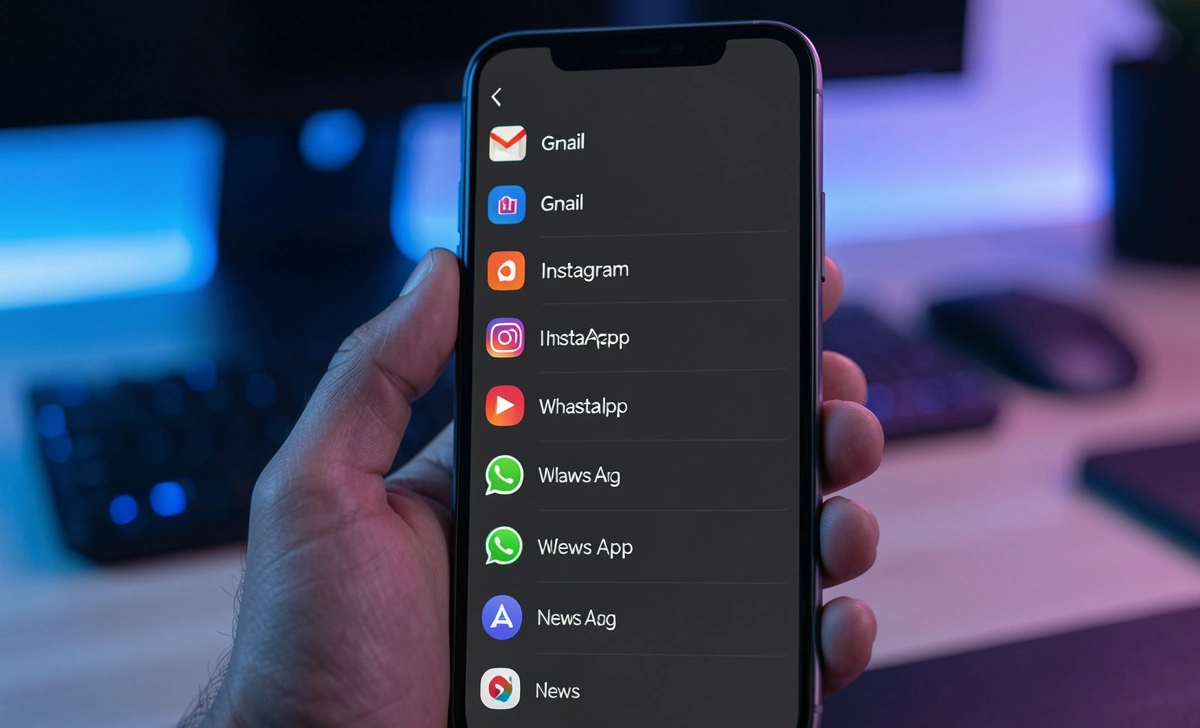
Most people don’t realize their phone records every notification they receive — even the ones they swipe away in seconds. These hidden logs sit quietly in the background, tracking every ping, banner, and badge from every app on your device.
These hidden logs can show exactly which apps interrupt you the most and when. With that data, you can take control instead of blindly turning everything off and accidentally missing something important.
In this guide, you will learn how to access app notification logs, analyze them, and stop unnecessary interruptions — without missing the alerts that actually matter.
What Are App Notification Logs?
App notification logs are system-level records that your phone keeps of every notification sent by installed apps. Think of them as a receipt history — your phone quietly timestamps and stores each alert, even the ones you never opened.
Both Android and iOS track these in the background automatically. You don’t have to turn anything on. The logs are already there — you just need to know where to look.
Why Do Notification Logs Matter?
The average smartphone user receives 46 to 80 push notifications per day. That constant stream of interruptions is not harmless. Research from the University of California, Irvine, found that it takes an average of 23 minutes to regain deep focus after an interruption.
Notification overload is also linked to increased anxiety and reduced cognitive performance. A 2023 study published in Computers in Human Behavior confirmed that high notification frequency directly correlates with higher stress levels and lower task completion rates.
Just like poor sleep hygiene quietly damages your health — the way block blue light habits matter for sleep — notification overload quietly drains your focus without you noticing it happening.
How to Access Notification Logs on Android
Android offers multiple ways to view your notification history, from a simple built-in toggle to more advanced developer tools.
Built-in Notification History Feature
Android 11 and later include a native notification history screen. To access it:
- Go to Settings → Apps & Notifications → Notifications
- Tap Notification History
- Toggle it on if it isn’t already
Once enabled, your phone stores the last 24 hours of notifications. You can see which app sent what, and at exactly what time.
Using Developer Settings (Advanced Method)
For a deeper look, enable Developer Options:
- Go to Settings → About Phone
- Tap Build Number seven times to unlock Developer Options
- Go back to Settings → Developer Options
- Look for Running Services or use a logcat-based tool to view real-time notification events
This method shows system-level alerts and is useful for identifying apps that send silent background notifications.
Third-Party Apps (If Needed)
Apps like Notification History Log (available on the Google Play Store) extend your logging window beyond 24 hours and let you filter by app, time, or keyword. These are especially useful if you want weekly or monthly trend data.
How to Check Notification Logs on iPhone
Apple’s approach to notification tracking is more limited compared to Android, but you still have useful tools available.
Screen Time & Notification Summary
Go to Settings → Screen Time → See All Activity. Scroll down to the Notifications section. This shows a per-app breakdown of how many notifications each app delivered over the past day or week.
You can also set up a Notification Summary under Settings → Notifications → Scheduled Summary. This bundles non-urgent alerts and delivers them at set times rather than interrupting you all day.
Limitations Compared to Android
iPhone does not show individual notification content in its history. You can see counts per app, but not the actual text of each alert. There is also no native log that records dismissed notifications. For granular analysis, Android remains the stronger platform.
How to Identify the Most Annoying Apps
Once you have access to your logs, the next step is finding the real culprits.
Frequency Analysis
Sort your notification log by app. Look for any app that appears 10 or more times in a single day. Common offenders include news apps, social media, email clients, and shopping apps. Frequency alone is your first signal.
Timing Patterns (Work vs Night)
Check when notifications are arriving, not just how many. An app that sends 5 alerts between 11 PM and 6 AM is far more disruptive than one that sends 20 during your work hours. Night-time interruptions fragment your sleep — and deep sleep quality has serious consequences for your health and focus.
Priority vs Noise
Ask one question for each app: Would missing this notification cause a real problem? If the answer is no, that app is noise. Separate your notifications into two categories:
- Priority — Messages from people, calendar reminders, banking alerts
- Noise — Promotional offers, streaks, likes, news headlines
How to Stop Interruptions Without Missing Important Alerts
Turning off all notifications is the wrong move. The goal is precision, not silence.
Turn Off Non-Essential Notifications
Go into each noisy app’s settings individually. For Android: Settings → Apps → [App Name] → Notifications. For iPhone: Settings → Notifications → [App Name]. Disable banners, sounds, and badges for apps that fall into your “noise” category.
Use Focus Mode / Do Not Disturb
Both Android and iOS offer scheduled focus modes:
- Android: Digital Wellbeing → Focus Mode → select apps to silence
- iPhone: Settings → Focus → create custom profiles for Work, Sleep, or Personal time
Set your Sleep focus to activate automatically from 10 PM to 7 AM. This alone can eliminate one of the most common sources of disruption.
Customize App Notification Settings
Most apps let you control notification types from within the app itself. In email clients, you can limit alerts to messages from specific contacts. In news apps, you can choose only breaking news. Always start inside the app before going to system settings — app-level controls are often more granular.
Best Digital Wellbeing Tools to Manage Notifications
Google Digital Wellbeing
Built into most Android phones under Settings → Digital Wellbeing. Shows daily notification counts per app, screen time, and lets you set app timers. The Bedtime Mode automatically silences notifications and turns the screen grayscale at night.
Apple Screen Time
Found under Settings → Screen Time. Provides weekly notification reports, app usage data, and communication limits. You can schedule Downtime to block all non-essential apps during specific hours.
Third-Party Apps
- Freedom — blocks distracting apps and websites on a schedule
- Daywise — holds notifications and delivers them in batches at times you choose
- RescueTime — tracks screen time and generates detailed productivity reports
Common Mistakes People Make
Turning off all notifications seems like a solution, but it causes you to miss time-sensitive messages from real people, which creates more stress, not less.
Ignoring system alerts is another trap. Battery warnings, security alerts, and software update notifications exist for a reason. Never silence your entire system notification category.
Not reviewing logs regularly means you never catch new offenders. Apps update constantly and often re-enable notification permissions after updates. Check your notification log once a week to catch new noise before it becomes a habit.
Just as you would check data breach exposure regularly to stay ahead of security threats, a weekly notification audit keeps your digital environment clean and in your control.
What Is the Best Notification Strategy in 2026?
The smartest users in 2026 treat notifications like email filters — everything gets sorted before it reaches their attention.
Minimal notifications are the foundation. The default should be off for every new app you install. Only turn on what you consciously choose.
Priority-based filtering means organizing alerts by who sent them, not which app. A message from your manager matters. A badge from a game does not.
Scheduled checking is the most powerful shift. Instead of reacting to notifications as they arrive, check your apps at set times — for example, 9 AM, 1 PM, and 5 PM. This turns you from reactive to intentional. For extra privacy, also understand whether incognito mode saves your data across sessions.
Key Takeaways — How to Take Back Control of Your Phone
- Your phone already logs every notification — you just need to access it
- Android users can use the built-in Notification History (Android 11+) for a 24-hour log
- iPhone users can use Screen Time for per-app notification counts
- Sort your log by frequency and timing to find the real noise-makers
- Use Focus Mode and per-app settings for surgical control — not a total blackout
- Review your notification log once a week to catch new offenders
- The best strategy: minimal by default, priority-based, and scheduled
Conclusion
Every unread notification badge is a small tax on your attention. Over hundreds of notifications a day, that tax adds up into lost focus, elevated stress, and a constant sense of being behind. Taking control of your notification logs is not about disconnecting — it is about choosing what gets your attention and when.
Your phone should work for you, not the other way around. The data is already there. You just have to look at it.