
If your eyes feel tired after a long day of screen use, or you lie awake unable to fall asleep, blue light from your devices could be the problem. Simple solutions exist — and many cost nothing. In this guide, you will learn how to block blue light devices so you can protect your eyes and sleep more deeply, starting tonight.
What Is Blue Light and Why Should You Care?
Blue light is part of the visible light spectrum with a shorter wavelength and higher energy than colors like red or yellow. Natural blue light from the sun keeps you alert during the day, but the concentrated dose from digital screens in the evening is a different story. When your eyes absorb that artificial light late at night, your brain gets confused and thinks the sun is still up.
Devices like smartphones, laptops, and LED televisions all emit this artificial blue light at close range for hours on end. Understanding the difference between useful daytime blue light and disruptive evening blue light is the first step toward protecting your health.
How Does Blue Light Affect Your Sleep?
Your brain uses light signals to decide when to release melatonin, the hormone that makes you feel sleepy. Blue light is especially powerful at suppressing melatonin because its wavelength closely matches midday sunlight — so your brain reads an evening screen as a reason to stay awake. Sleep researchers like Dr. Charles Czeisler have shown that even brief evening screen exposure can delay melatonin release and cut the quality of your rest.
If you want to understand why deep sleep and REM sleep both matter for recovery, REM vs deep sleep explains the difference. Managing blue light is one of the most direct, drug-free ways to protect your natural sleep rhythm.
Can Blue Light Cause Eye Strain and Headaches?
Blue light scatters more than other wavelengths, making images slightly harder for your eye muscles to focus on. When you stare at a screen, you also blink far less than normal, leading to dry, irritated eyes and afternoon headaches. Together, these factors create digital eye strain — that heavy, burning feeling behind your eyes after a long workday.
If that persistent fatigue sounds familiar, it may also connect to the signs of burnout that many screen-heavy workers experience. A simple habit called the 20-20-20 rule helps: every twenty minutes, look at something twenty feet away for twenty seconds to let your eye muscles reset.
The Simplest Free Ways to Block Blue Light from Your Devices
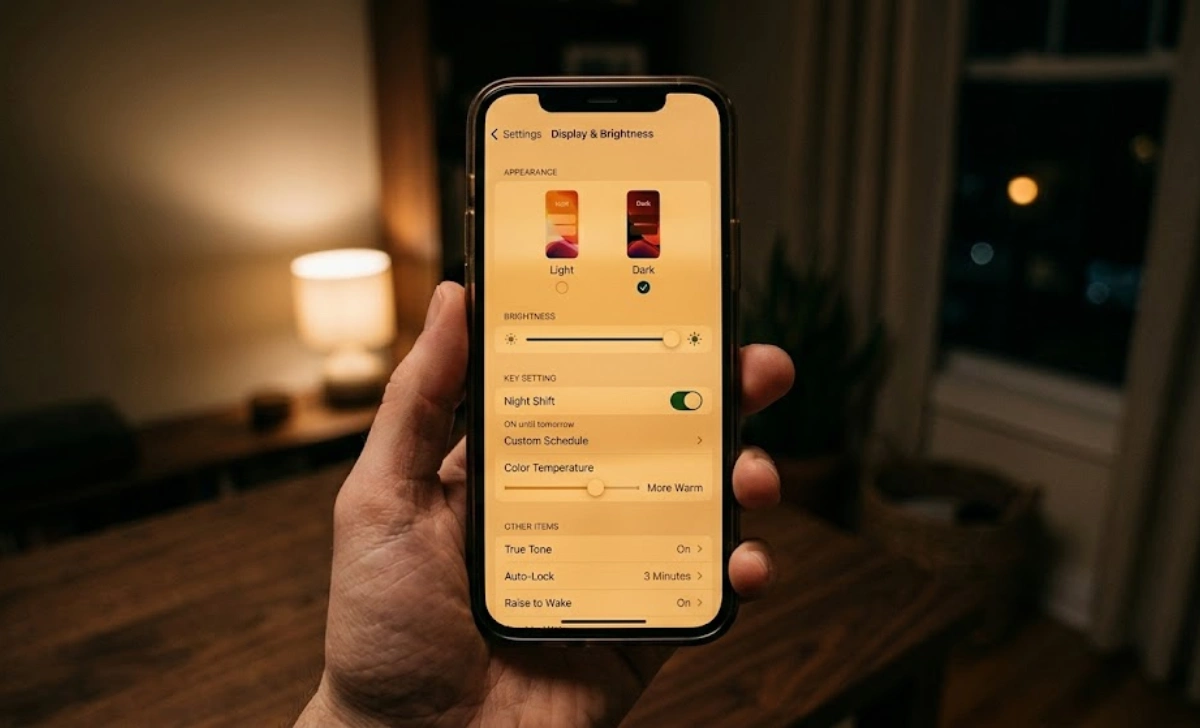
Almost every modern phone, tablet, and computer has a built-in blue light filter that warms screen colors to a gentler amber tone. These features take less than a minute to activate and cost absolutely nothing.
On iPhone or iPad, go to Settings, then Display and Brightness, then Night Shift and schedule it for sunset to sunrise. On Android, look for Eye Comfort Shield or Blue Light Filter in Display settings. Windows users can search for Night Light in the taskbar. Mac users can find Night Shift in System Preferences under Displays. For older devices, the free app f.lux adjusts your screen color automatically based on the time of day.
These free filters significantly reduce your evening blue light exposure. Activate them tonight, and you are already protecting your sleep better than most people.
How Do Blue Light Filter Apps Work and Are They Worth It?
Apps like Twilight for Android or Iris for multiple platforms offer a warm, adjustable screen overlay with more customization than native settings. You can fine-tune color temperature, dimness, and flicker rate — useful if you are particularly light-sensitive or using an older device.
The trade-off is that these apps can slow down older hardware. For most people with a modern device, the built-in filter is all you need.
Do Blue Light Blocking Glasses Really Help?
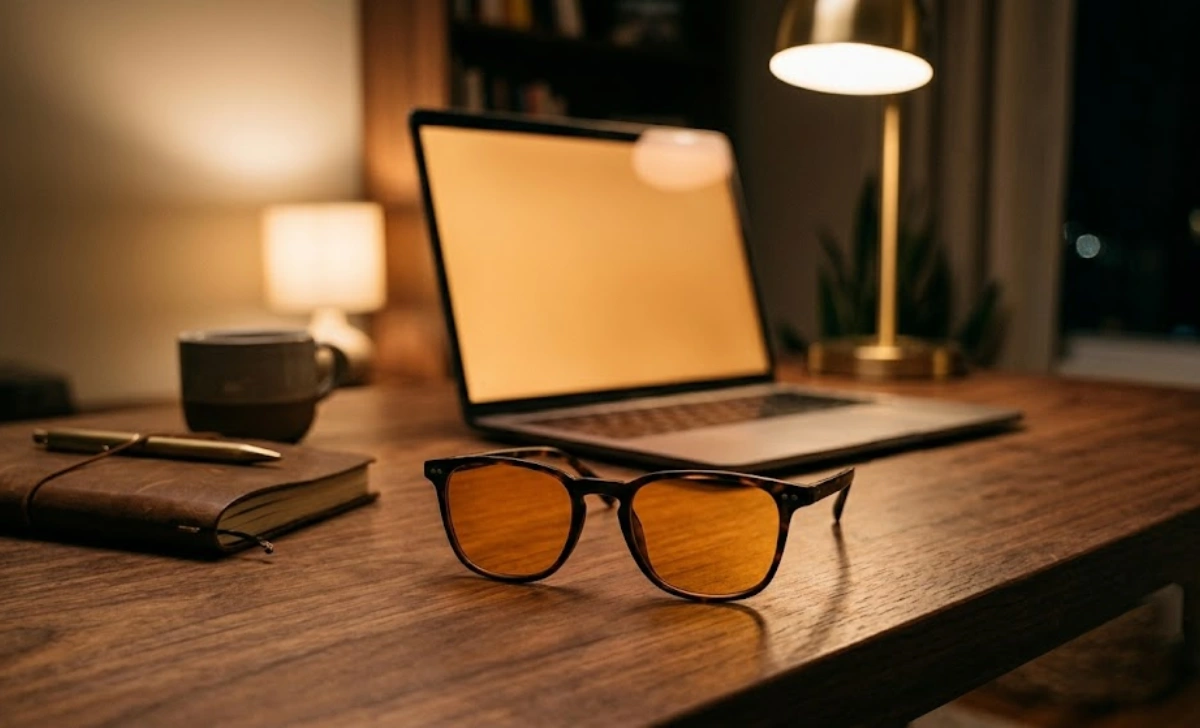
Yes, but results depend on when and how you use them. Clear-lens glasses block a smaller percentage of blue light and suit daytime screen use. Amber or orange-tinted lenses block significantly more and are the ones that genuinely support melatonin production in the evening.
Wearing amber-tinted glasses for an hour or two before bed makes a real difference — and unlike screen filters, they also block blue light from overhead LED lights and lamps around you. Look for a pair that states its filter wavelength range, includes an anti-reflective coating, and fits comfortably. Glasses that slide down your nose will end up in a drawer instead of on your face.
How Do Blue Light Screen Protectors and Monitor Filters Work?
A blue light screen protector is a thin glass or film layer applied to your phone or tablet that filters light passively for every person using the device. For desktops, a filter panel over your monitor creates a reliable, set-it-and-forget-it solution. Screen protectors work especially well for shared family tablets because they protect everyone automatically.
You can also combine a screen protector with your device’s built-in filter for extra coverage. The main downside is a slight color shift, which is barely noticeable during everyday browsing and productivity tasks.
How to Adjust Your Environment and Habits for Healthier Screen Time
Cool-white overhead bulbs push blue-rich light into your eyes just like screens do. Switching to warm-white or amber-toned lamps in the evening helps your brain ease into its natural pre-sleep state. Also, lower your screen brightness manually after dark — intensity matters just as much as color temperature.
If you spend eight or more hours seated at a screen, the strain goes beyond your eyes — sitting all day carries its own health costs worth addressing alongside blue light.
Which Blue Light Blocking Method Is Best for You?
The best method is the one you will use consistently. Start by activating the built-in filter on every device you use in the evening — it costs nothing and takes one minute. If you still notice sleep trouble or eye fatigue after a week, add amber-tinted glasses for the last hour before bed.
If glasses are not comfortable for you, a screen protector on your phone and a monitor filter on your desktop create hands-free protection. For more practical screen time tips, listen to your body and notice which combination leaves your eyes fresher and your sleep deeper.
Common Myths About Blue Light Debunked
Blue light glasses will not instantly cure all sleep problems — they work best combined with good sleep habits, not as a standalone solution. It is also false that all blue light is harmful. Daytime exposure is essential for mood and energy, which is why heavily tinted amber glasses belong on your nightstand, not your face, during daylight hours.
No product blocks one hundred percent of blue light, and complete blockage would make screens unreadable anyway. The goal is meaningful reduction — even a thirty to fifty percent cut in evening blue light can noticeably improve how you feel. Eye strain is also multi-factored, so addressing only blue light will not solve everything on its own.
A Simple Tonight Plan to Start Blocking Blue Light
Spend two minutes turning on the built-in blue light filter on your phone and computer. Schedule it to activate at sunset, or switch it on manually about an hour before your usual bedtime. Then swap your bright overhead lights for a small warm lamp during that final hour before sleep.
Finally, try ending your screen use just fifteen minutes earlier than usual and use that time to stretch or sit quietly. You may be surprised how much heavier your eyelids feel when you stop flooding them with artificial daylight. Small steps like these build the foundation for lasting eye comfort and genuinely restful nights.
Frequently Asked Questions About Blocking Blue Light
What is the best blue light filter app for kids?
A gentle app like Twilight with its soft red overlay works well for children, especially on older tablets without built-in filters. Set it to activate automatically so the child never needs to adjust anything themselves.
Can I wear blue light glasses all day?
Clear-lens blue light glasses are fine for all-day wear and can reduce screen-related eye fatigue during work. Save heavily tinted amber lenses for the evening, since your brain needs natural blue light during the day for mood and alertness.
Do blue-light-blocking contact lenses work?
Some contact lens brands now include blue-light-filtering technology, adding everyday comfort for heavy screen users. They work best as a supplement to other methods, not a replacement for glasses.
How long before bed should I stop using screens?
Aim to put devices away at least thirty to sixty minutes before sleep so your melatonin levels can rise naturally. Even a fifteen-minute buffer with a strong filter makes a difference over time.
Conclusion
You now have a full toolkit — free built-in filters, glasses, and screen protectors — to take control of your blue light exposure. Meaningful protection does not require a lifestyle overhaul or expensive gear. Combine free device settings with a simple evening habit, and you will likely feel the difference in your eyes and sleep within just a few days. Start with the free trick that takes sixty seconds, and let your own results guide what comes next.