
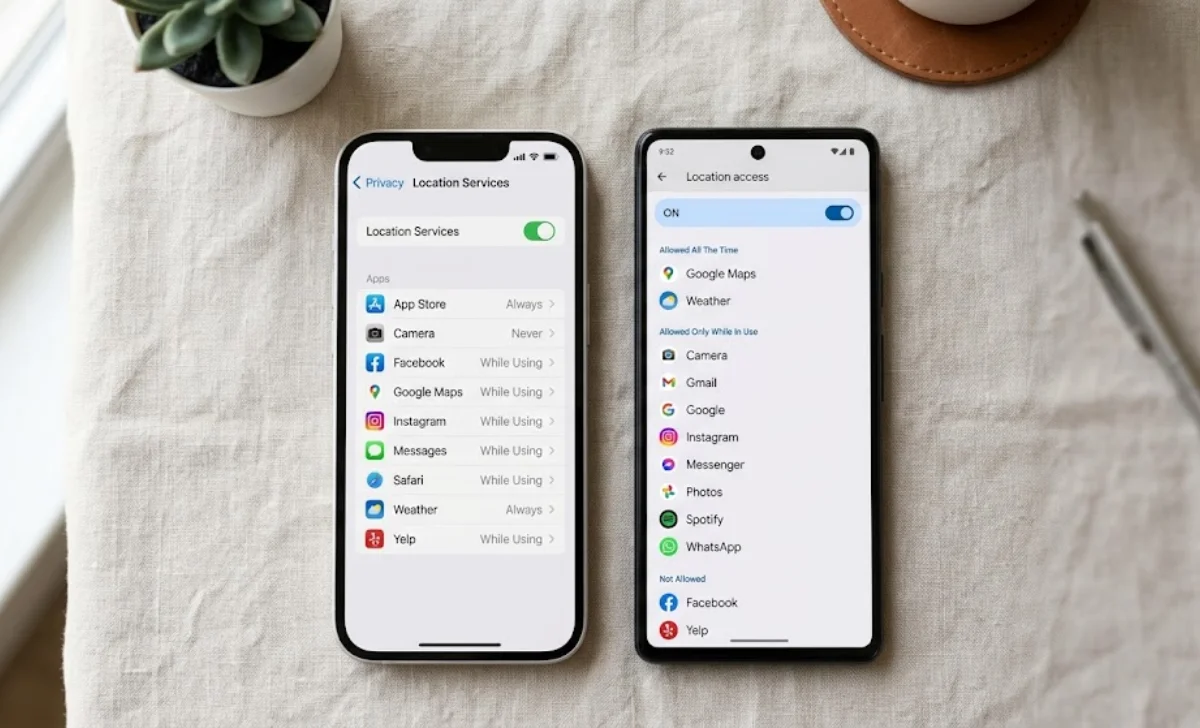
You have probably installed dozens of apps over the years. An app location access check takes just a few minutes and tells you exactly which apps still know where you are. That quiet concern is worth acting on.
Apps ask for your location for maps, weather, and delivery services. But sometimes they hold onto that permission far longer than they should. In the next few minutes, you will learn exactly how to see which apps have location access on both iPhone and Android, no technical skills needed.
Why Should You Check Which Apps Have Location Access Right Now?
Most people forget about location permissions after tapping “Allow” once. Apps update over time, and the way they use your data can shift quietly. A social media app from three years ago might still pull your location in the background without you ever needing that feature.
There is also a practical reason to check today. Location tracking uses your phone’s GPS radio, which drains the battery. When several apps constantly ping your location, you lose power faster than necessary. Cutting back on unnecessary access can give you meaningful extra time between charges.
Beyond battery life, some apps request location for reasons that have nothing to do with their core function. A quick review lets you catch that before it becomes a habit you never questioned.
How Can You See Which Apps Have Location Access on iPhone?
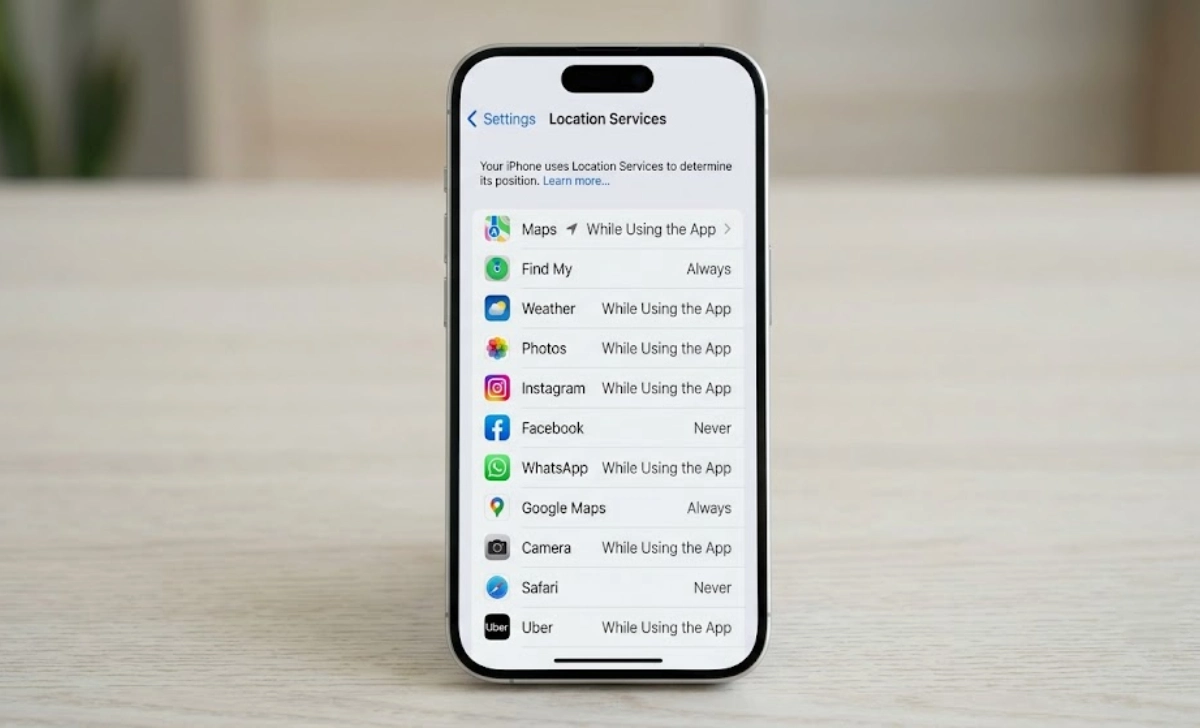
Open the Settings app, scroll down, and tap Privacy & Security. At the top of that screen, tap Location Services. You will see a complete list of every app that has ever asked for your location, each showing its current permission level.
Next to each app, you will see “Never,” “While Using the App,” or “Always.” These labels tell you exactly what access each app holds right now. You can also spot a small arrow icon beside some apps, which hints at recent activity.
A hollow purple arrow means an app may receive your location under certain conditions. A solid purple arrow means it has recently used your location. These small symbols can quickly point you toward apps that are more active than you expected.
How Do You Check App Location Permissions on Android?
Open Settings and look for a section called Location, usually near the top or inside Privacy. Once inside, tap App Location Permissions to see the full breakdown organized by access level. Samsung, Pixel, and other Android devices all follow this same basic path.
Android groups apps into categories like “Allowed all the time,” “Allowed only while in use,” and “Not allowed.” This layout makes it simple to spot which apps have the broadest access. You can immediately see anything set to “all the time” and decide whether that level makes sense.
Scroll through the entire list carefully. You might be surprised how many rarely used apps still sit in the “allowed” category. Each one is a small decision you can revisit right now.
What Do the Location Permission Levels Actually Mean?
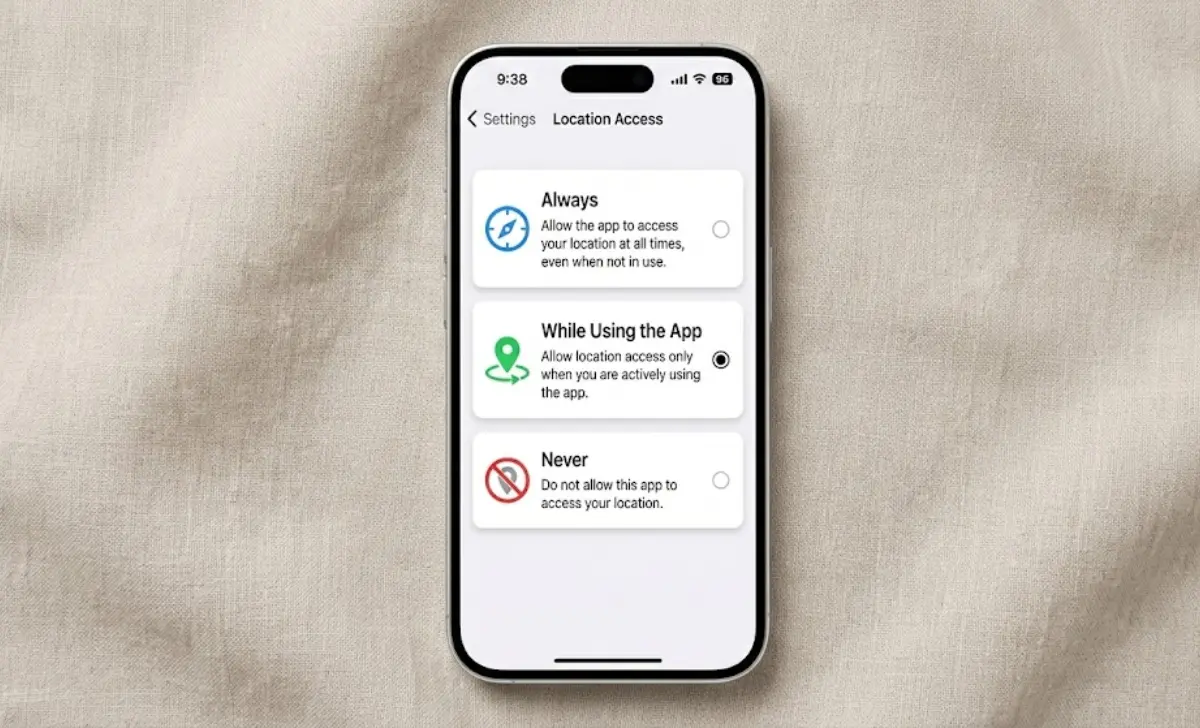
“While Using the App” is the most protective option that still lets apps work properly. The app can only see your location when it is open on your screen. The moment you swipe away, tracking stops, which works well for navigation and ride-hailing apps.
“Always” permission lets an app access your location even when you are not using it. It can run in the background and log your whereabouts at any time. Some apps genuinely need this, like a family location-sharing service, but most do not.
“Never” blocks all location access completely. On Android, “Ask every time” gives you a pop-up each time an app wants your location. Worth noting: if you are concerned about app tracking after deletion, changing permissions before you uninstall is a smart first step.
How can the iOS App Privacy Report Show You Actual Location Activity?
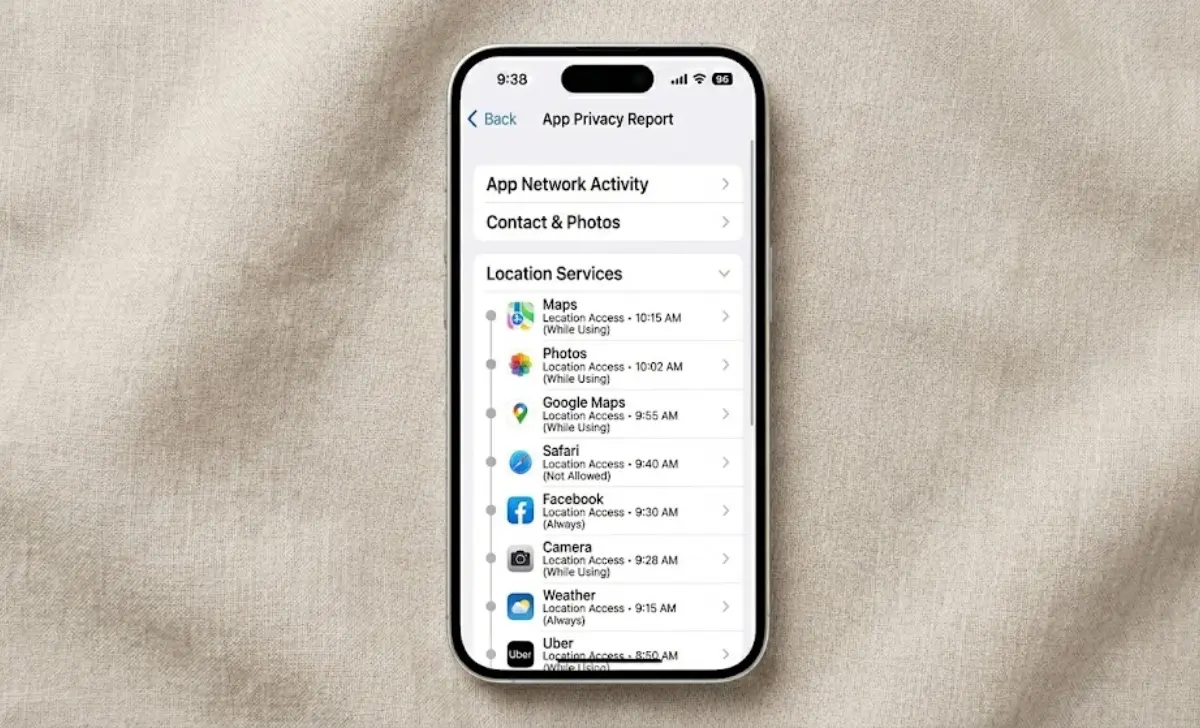
Seeing permission labels is only half the picture. Your iPhone can also show you a log of which apps actually used your location and when. Go to Settings, then Privacy & Security, and scroll down to App Privacy Report. Enable it, and your phone quietly collects data in the background.
After a few days, open the report and tap any app. You will see the exact days and times it accessed your location. Sometimes you will catch an app requesting access at a time that makes no sense for how you use it.
This goes well beyond a simple permission check. You are looking at actual behavior, not just what an app is allowed to do. That difference matters when you want the full picture.
How Can You Use the Android Privacy Dashboard to See Recent Location Requests?
Open Settings, tap Privacy, then select Privacy Dashboard. Tap Location, and a list appears showing every app that requested your location in the past 24 hours, along with timestamps. This answers a question you probably already have: Was my location actually used today?
This view makes patterns easy to spot. If an app you rarely open appears multiple times in an afternoon, it is time to change its permissions. The dashboard lets you tap directly through to that app’s settings without any extra navigation.
Using this regularly helps you understand what normal activity looks like on your device. Anything unusual stands out quickly, and you already know exactly what to do about it.
What Do the Location Arrow and Pin Icons Mean on Your Phone?
On an iPhone, a hollow arrow means an app may receive your location under specific conditions. A solid purple or blue arrow means an app has recently accessed it or is doing so right now. When you see that solid arrow, you can open the App Privacy Report to confirm which app triggered it.
Android shows a small pin or location dot in the status bar. Tapping on it typically reveals which app is currently requesting your location. The indicator is direct and does not hide anything.
Once you start noticing these icons, you gain ongoing awareness of what your phone is doing. It is calm, informed attention rather than worry, which is exactly where you want to be.
Precise vs Approximate Location – What Is It and Why Should You Care?
Both iPhone and Android let you choose between precise and approximate locations. Precise shares your exact coordinates down to street level. Approximate gives an app a general area, often within a few miles, which is more than enough for most apps.
A weather app only needs your city to show an accurate forecast. It has no reason to know which street you are on. Switching it to approximate location is a one-tap change that protects your exact movements without breaking any functionality.
When an app genuinely needs precise coordinates, like a navigation tool, leave precise on for that specific app. Every other app that can work with a general area should be set accordingly.
How Can You Revoke or Change Location Access for Multiple Apps?
As you make these changes, nothing will break. Apps still work; they simply get less information than before. If you ever plan to sell your old device, it is also smart to securely wipe your smartphone before handing it to anyone. Many people feel genuine relief after cleaning up that list.
On Android, from the App Location Permissions list, tap an app and select the new permission level. You can also turn off the “Use precise location” toggle right there. That single action significantly reduces how much tracking data the app can collect.
As you make these changes, nothing will break. Apps still work; they simply get less information than before. Many people feel genuine relief after cleaning up that list.
A Simple Routine to Check Your App Location Access Regularly
Pick a consistent day each month and open your location settings. Scan the list for anything that seems out of place or still carries “Always” access without a clear reason. The whole review takes about thirty seconds once you know where to look.
While you are there, check the privacy report or dashboard quickly. Building strong digital habits, like using a strong password you remember, adds up to real protection over time. If something looks odd, you now have every tool you need to fix it immediately. The check stays simple because the goal is awareness, not anxiety.
Frequently Asked Questions About App Location Access Check
Can apps track my location if I turn off location services completely?
No. When location services are fully off, no app can access your GPS data. Some apps may estimate your general area using Wi-Fi or Bluetooth, but precise GPS tracking stops. Managing permissions per app is usually more practical than turning everything off.
Do I need to check location access on my iPad the same way?
Yes. iPads run the same operating system as iPhones, so the steps are identical. Any device that travels with you is worth reviewing. Staying alert to fake tech support scams while you are in settings is also a good habit.
Will changing permissions stop apps from working properly?
Most apps continue to work fine with reduced access. If a feature truly needs location, the app will prompt you to update the permission at that moment. You can grant access temporarily and switch it back afterward.
How often should I really do a location access check?
Once a month works well for most people. If you install many new apps or travel frequently, every two weeks is reasonable. The goal is to make it routine so it never feels like a burden.
Conclusion
You just completed a full privacy audit of your phone, and it probably took less time than you expected. Your device already gives you more control than most people ever use. The permission lists, privacy dashboards, status icons, and approximate location toggle are all there waiting.
The real win is not just fixing things once. It is knowing you can return to these tools in seconds anytime and always stay informed. Your location story belongs to you.