

You hit “uninstall,” watch the icon disappear, and breathe a sigh of relief. Done, right? Not quite. You’ve probably asked yourself: Does app tracking after deletion really stop? Short answer: no—not unless you manually clear it.
Here’s the thing: deleting an app from your home screen is just the first step. The real cleanup happens behind the scenes—and most of us never check. Let’s fix that.
What Actually Happens When You Delete an App?
When you uninstall an app, your phone removes the main program files. That’s the visible part. But think of it like moving out of an apartment: you take your furniture, but what about the nail holes in the wall?
Local Files vs. Server Data: The Critical Difference
Your phone might delete local cache or preferences, but the app’s servers? They often keep your data indefinitely. Things like your usage history, device ID, or even location logs can stay linked to your account long after the app is gone.
Why “Uninstall” ≠ “Erase My Data”
App stores make “delete” feel final. It’s not. Many apps sync data to the cloud the moment you open them. Uninstalling just stops the flow—it doesn’t rewind what’s already been shared. So what actually happens to app data after uninstall? It splits into two places: your phone’s local storage and the developer’s servers. If you never explicitly requested data deletion, that info likely still exists.
Residual Files After App Deletion: Why Privacy Still Matters
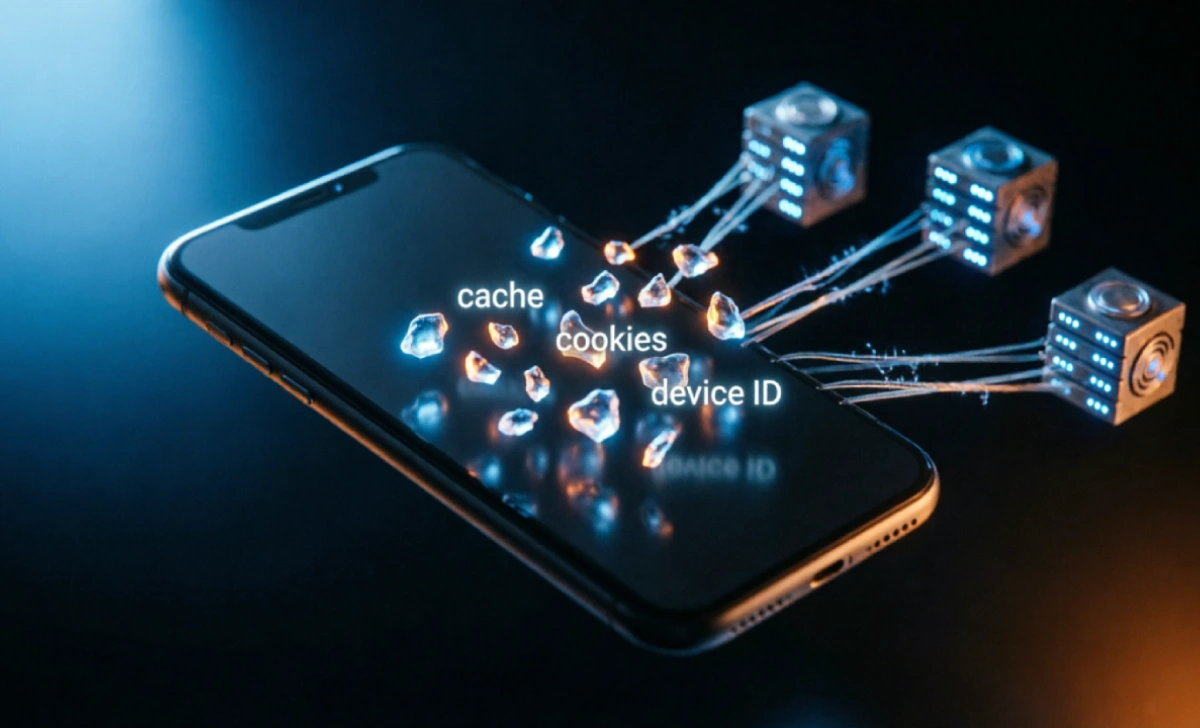
This is where it gets sneaky. Even after an app is gone, fragments can stick around and keep reporting.
Cache, Cookies, and Device IDs That Stick Around
On Android, leftover folders in /Android/data/ or /sdcard/ might hold analytics files. On iOS, keychain entries or shared app group data can persist. These aren’t always malicious—they might just help the app “remember” you if you reinstall—but they can also feed ad networks.
How Ad Networks Use “Ghost Tags” Post-Uninstall
Ever deleted a shopping app and still see its ads for weeks? That’s not a coincidence. Ad SDKs often plant lightweight identifiers (like AAID on Android or IDFA on iOS) that survive uninstall. When you browse other apps or sites, those tags can still match you to old profiles.
Truth is, the ad tech ecosystem is built to remember you—even when you think you’ve walked away.
Platform-Specific Cleanup Guides
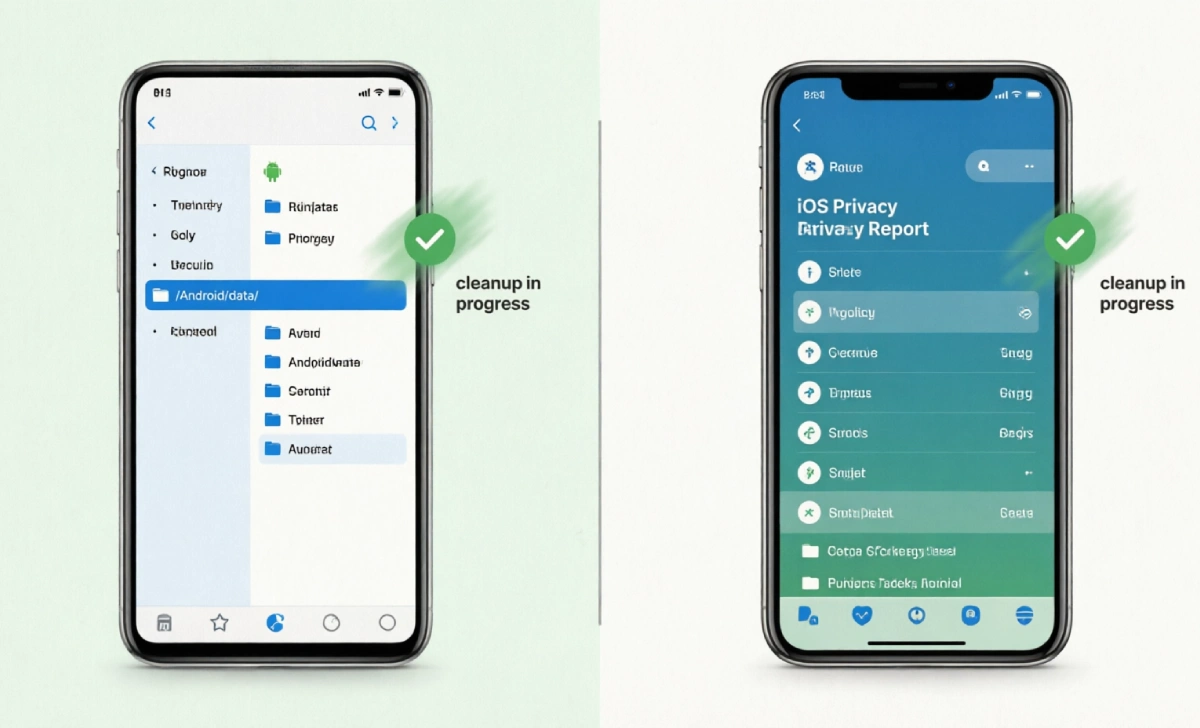
I mapped these steps into a single-page, offline-friendly checklist. Print it or keep it open on a second screen so you aren’t guessing through settings menus. If you’re looking for how to remove app tracking files Android-style, skip the app drawer and open a file manager.
Android: Manual File Audit + ADB Commands
- Check leftover folders: Use a file manager and look in
Android/data/them, andAndroid/obb/. If you see a folder named after the uninstalled app, it’s safe to delete. - Clear advertising ID: Go to Settings > Privacy > Ads > Delete advertising ID. This resets the tracker that ad networks use.
- Advanced users: ADB commands
adb shell pm list packagescan help spot residual package names. But if that sounds like gibberish, stick to steps 1–2—you’ll still get 90% of the way there.
iOS: Settings Checklist + Privacy Report Walkthrough
- Offload vs. Delete: Make sure you choose “Delete App,” not “Offload.” Offloading keeps documents and data.
- Review Privacy Reports: Go to Settings > Privacy & Security > App Privacy Report. It shows which apps accessed data recently—even if they’re no longer installed.
- Reset Advertising Identifier: Settings > Privacy & Security > Apple Advertising > turn off “Personalized Ads.” Then reset IDFA in Settings > General > Transfer or Reset iPhone > Reset > Reset Advertising Identifier.
You’ve probably noticed these menus aren’t obvious. Apple and Google bury them for a reason—most people won’t dig. But you’re reading this, so you’re already ahead.
Why You Still See Ads After Deleting an App
So you deleted that fitness tracker app, but your Instagram feed still shows protein powder ads. Frustrating, right?
The Role of Device Fingerprinting & Probabilistic Tracking
Even without cookies or IDs, advertisers can guess it’s you based on your device model, OS version, screen resolution, timezone, and browsing patterns. It’s like recognizing someone by their walk instead of their face. Creepy? Yeah. Effective for them? Unfortunately, also yes.
How to Opt Out of Ad Personalization (Step-by-Step)
- Android: Settings > Privacy > Ads > Opt out of Ads Personalization
- iOS: Settings > Privacy & Security > Apple Advertising > turn off “Personalized Ads”
- Web: Visit opt-out pages for major ad networks to reduce personalized tracking
These won’t stop ads completely—but they’ll make them less eerily specific.
Proactive Protection: Stop Tracking Before It Starts
Prevention beats cleanup. Before you even install an app, ask: Does this really need my location, contacts, or camera? If a flashlight app asks for your microphone, that’s a red flag.
Pre-Uninstall Checklist: Revoke Permissions First
Before hitting uninstall:
- Open the app’s settings in your phone’s system menu
- Revoke all permissions (location, camera, microphone, etc.)
- Clear its cache and storage first, then uninstall
- If the app had an account, log out and request data deletion via their privacy portal
Privacy-Focused App Alternatives Worth Switching To
Sometimes the best move is swapping apps entirely. For example:
- Instead of a mainstream weather app, try Today Weather (minimal permissions, no ad SDKs)
- Swap social media browsers for Firefox Focus (auto-blocks trackers, clears session on close)
Small switches add up. And you’ll sleep better knowing your data isn’t hitching a ride after you’ve said goodbye.
FAQs
If I delete an app, can the developer still see my old data?
Usually, yes—unless you explicitly requested deletion. Check the app’s privacy policy or send a GDPR/CCPA request. Most companies are legally required to comply.
Does factory resetting my phone remove all tracking data?
It removes local data, but not what’s already been sent to servers. Think of it as wiping your notebook, not the library that copied your notes.
How often should I audit my phone for leftover files?
Every 3–4 months is plenty. Set a calendar reminder. It takes 10 minutes and gives you peace of mind.
Can I tell if an app is tracking me after I delete it?
Not directly, but if you still see hyper-specific ads from that brand, it’s a strong hint. Use your phone’s privacy reports (iOS) or Digital Wellbeing (Android) to spot unusual data access.
Wrapping Up
Deleting an app is a start—but it’s rarely the finish line. Tracking data can linger in caches, ad IDs, or remote servers, quietly painting a picture of your habits. The good news? You’ve got the tools to clean it up.
Start with the pre-uninstall checklist next time. Bookmark your OS’s privacy settings. And if you want a printable version of the cleanup steps we covered, grab our free 10-Minute App Detox Checklist—it walks you through each tap, with screenshots for Android 14 and iOS 17.
If this helped, you might also like our deep dive on GDPR/CCPA Data Deletion Request Templates: Copy-Paste Scripts for 10 Popular Apps. Because sometimes, the most powerful move is simply asking them to forget you.