
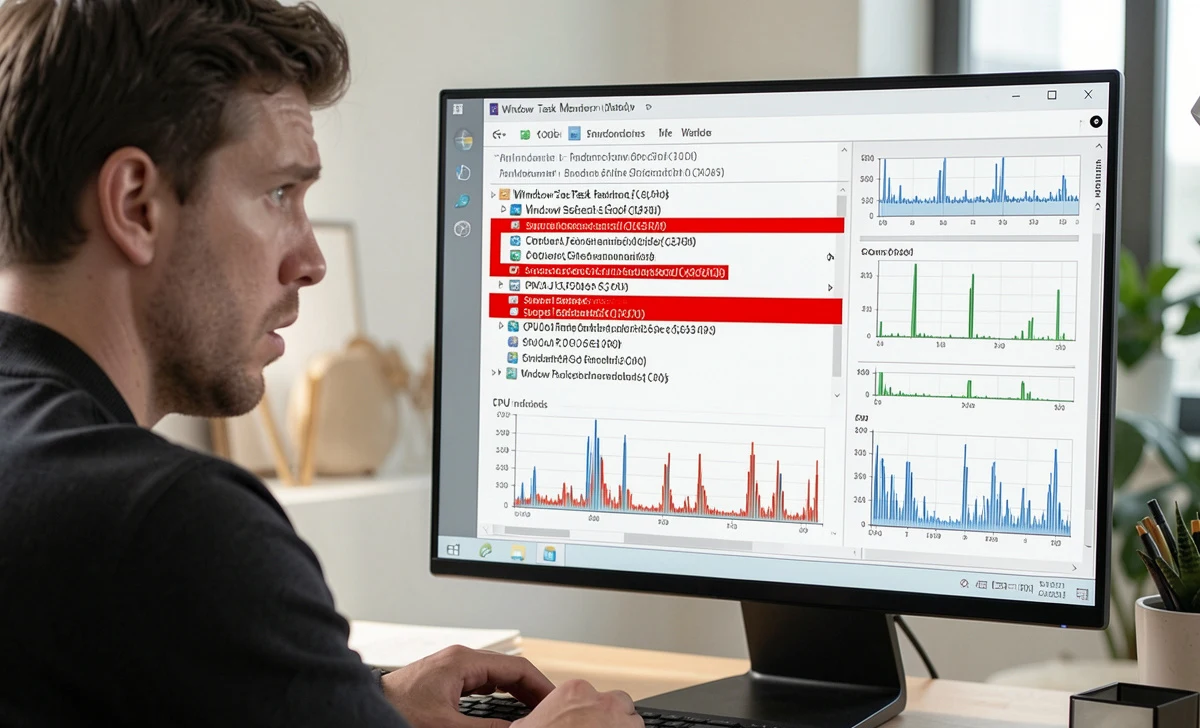
Your PC feels… off. It’s sluggish, the fan kicks in for no reason, or maybe your browser just redirected somewhere weird. You ran a scan. It says “clean.” But that nagging feeling won’t go away.
First, Recognize the Subtle Signs (Before You Even Open Task Manager)
You’ve probably noticed your computer acting strange, but you’re not sure if it’s malware or just “getting old.” That’s normal. Malware today isn’t always loud pop-ups and ransom notes. Sometimes it’s quiet.
Look for these subtle red flags:
- Sluggish performance even with a few tabs open—especially if it happens right after startup.
- Unexplained network activity: your Wi-Fi light is blinking when you’re not doing anything.
- Browser quirks: homepage changed, new toolbars, or searches redirecting without your input.
- High disk or CPU usage in the background with no obvious cause.
These malware symptoms, slow computer, and no popups scenarios are tricky because they mimic normal wear-and-tear. But if you’re seeing two or more together? Worth investigating.
Real talk: I once helped a friend troubleshoot a “slow” laptop. Turned out a crypto-miner was quietly using her GPU. No pop-ups. No alerts. Just a warm laptop and a weirdly short battery life.
Also, keep an eye out for fake tech support scams that might pop up claiming your PC is infected—they’re often malware in disguise.
Manual Detection Method #1: Audit Task Manager Like a Pro
This is where you take control. Task Manager isn’t just for force-quitting frozen apps—it’s a window into what’s actually running on your system.
How to spot suspicious process names & resource hogs
- Press
Ctrl + Shift + Escto open Task Manager. - Click “More details” if you see the simple view.
- Sort by CPU, Memory, or Disk by clicking the column headers.
- Look for:
- Processes with random names (e.g.,
xvzqk.exe,svch0st.exe—note the zero instead of “o”). - Entries with no publisher listed under the “Publisher” column.
- High resource usage from apps you don’t recognize.
- Processes with random names (e.g.,
What “high CPU usage” really means for malware detection
You might wonder: Is high CPU usage a sign of malware? Sometimes, yes—but context matters.
- Normal: Chrome is using 30% CPU while streaming video.
- Suspicious: A process is
update_helper.exeusing 80% CPU while your PC is idle.
If you see something odd, right-click the process → “Search online.” Don’t click links in the process itself—use a separate browser tab. Sites like BleepingComputer or Microsoft’s process library can help you verify.
Manual Detection Method #2: Check Startup Programs & System Entries
Malware loves to stick around by adding itself to your startup items. That’s why knowing how to check startup programs for malware on Windows is a smart move.
Here’s how:
- Open Task Manager (
Ctrl + Shift + Esc) - Go to the Startup tab
- Look for:
- Programs with blank publishers
- Weird names or random character strings
- Anything you don’t remember installing
Right-click → Disable if you’re unsure. You can always re-enable later.
This ties back to those subtle signs my computer has malware, but no antivirus caught anything. Sometimes the clue isn’t in what’s running now—it’s in what’s set to run next time you boot up.
If you’re worried about suspicious emails that might have triggered this, learn how to spot phishing emails before clicking anything next time.
Manual Detection Method #3: Use Windows Built-In Tools (No Install Needed)
You don’t need third-party apps to run a deeper check. Windows has quiet, powerful tools most people overlook.
Run Microsoft Defender Offline Scan (step-by-step)
This scans before Windows fully loads—catching malware that hides during normal operation.
- Go to Settings > Update & Security > Windows Security.
- Click Virus & threat protection → Scan options.
- Select Microsoft Defender Offline scan → Scan now.
- Your PC will restart and run a 15-minute deep scan.
It’s not flashy, but it’s effective against rootkits and persistent threats.
Use Malicious Software Removal Tool (MRT) via Command Line
MRT is pre-installed on Windows but hidden. To run it manually:
- Press
Win + R, typemrt, and hit Enter. - Follow the prompts for a quick or full scan.
It won’t replace a full antivirus, but it’s a solid second opinion.
Final Verification Checklist: Is Your PC Really Clean?
You’ve run checks. You’ve looked at processes. Now, let’s tie it together.
Ask yourself:
- Did I spot any unfamiliar processes in Task Manager with high resource use?
- Did I verify suspicious entries via a trusted source (not the process itself)?
- Did I run an offline scan or MRT for deeper coverage?
- Did I check startup programs for entries I don’t recognize?
- Do my symptoms persist after these checks?
If you checked most boxes and still feel uneasy, that’s okay. Trust your gut. Sometimes the best next step is asking for help.
When to seek professional help vs. DIY fix
- Stick with DIY if: you found one suspicious item, removed it, and performance improved.
- Get help if: multiple red flags remain, you’re uncomfortable with technical steps, or sensitive data is at risk.
Local repair shops or trusted online communities (like r/techsupport on Reddit) can guide you without pushing unnecessary software.
FAQs
Can malware hide from Task Manager?
Some advanced threats can, but most consumer-grade malware doesn’t bother. If you see weird processes, high resource use with no cause, or entries with no publisher, investigate further.
My PC is slow, but scans say clean. What now?
Try the manual checks above. Also consider non-malware causes: too many startup apps, low disk space, or outdated drivers. Malware isn’t the only culprit.
Is it safe to end a suspicious process in Task Manager?
Usually, yes—if you’ve verified it’s not a critical system file. When in doubt, search the process name first. Ending a malicious process won’t always remove it permanently (it might restart), but it can stop immediate harm.
How often should I manually check for malware?
If you practice safe browsing and keep Windows updated, once a month is plenty. More often, if you download files frequently or use public Wi-Fi.
Wrapping Up
Finding hidden malware without installing software isn’t about being a tech wizard. It’s about knowing where to look and what questions to ask.
Start with the symptoms. Use Task Manager as your first detective tool. Lean on Windows’ built-in scanners when you need backup. And trust your instincts—if something feels off, dig a little deeper.
Once your PC is clean, it’s smart to create strong passwords that you can actually remember—this helps prevent future infections.