
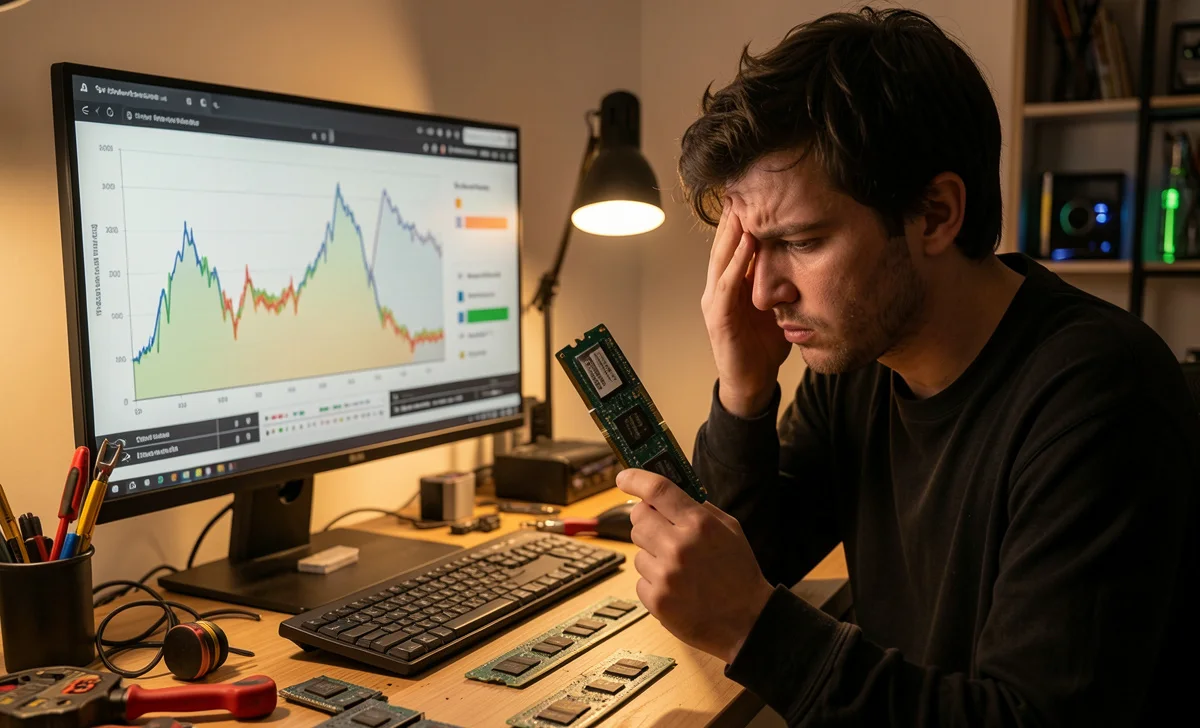
You popped in that new stick of RAM, crossed your fingers, hit the power button… and nothing. Or worse, everything feels sluggish. It’s frustrating. You spent money and time expecting a speed boost, not a slowdown. If you’re wondering why my old PC slower RAM happen, you’re not alone—and there’s usually a straightforward reason behind it. Before diving into fixes, make sure you can spot fake tech support scam warning signs—some “slow PC” fixes online are anything but helpful.
Here’s the thing: adding RAM isn’t like pouring more gas in a tank. Your system has to actually see it, talk to it, and use it properly. When that handshake fails, performance can dip. Let’s walk through what’s likely happening and how to get your machine running the way you hoped.
Understanding the Paradox: When More RAM Means Slower Performance
Think of your computer like a small workshop. RAM is your workbench space. More space should mean you can spread out more tools and work faster. But if the new bench wobbles, doesn’t fit through the door, or your tools keep sliding off it, you’ll spend more time fixing the setup than getting work done.
That’s essentially what happens when RAM isn’t configured right. The hardware might be physically installed, but if the motherboard, BIOS, or operating system isn’t aligned with it, your PC can waste cycles trying to manage the mismatch. The result? Stutters, longer boot times, or apps freezing when they never did before.
Common Causes of Post-Upgrade Slowdowns
RAM Not Recognized or Partially Detected
This one’s sneaky. You install 8GB, but Windows only shows 4GB usable. Or the system boots, but feels… off. When your PC doesn’t fully recognize the new memory, it can fall back to slower compatibility modes or even disable parts of the stick.
Quick checks:
- Open Task Manager (Ctrl+Shift+Esc) → Performance tab → Memory. Does the total match what you installed?
- Try reseating the RAM: power down, unplug, press the power button for 10 seconds to drain residual charge, then firmly reinsert the stick until the clips click.
- Test one stick at a time if you’re using multiple. A single faulty module can drag down the whole system.
If your RAM isn’t being recognized after installation on an older computer, it’s often a physical connection issue or a motherboard limitation. Older boards sometimes max out at certain densities (like 4GB per slot).
Mixing RAM Speeds or Timings Causes Conflicts
Ever bought a “compatible” stick that technically fits the specs, but your PC acts weird afterward? If you’re mixing RAM speeds and noticing computer lag, here’s why: your motherboard will default to the slowest common speed and loosest timings across all sticks. So if your old RAM runs at 1333MHz and the new one is 1600MHz, both will downclock to 1333MHz—and sometimes the negotiation itself introduces instability.
It’s not just speed. CAS latency (CL), voltage, and even the RAM’s rank (single vs. dual) matter. Mismatches here can cause subtle timing errors that manifest as random freezes or slower app launches.
Pro tip: Use a tool like CPU-Z (free) to check your existing RAM’s exact specs before buying more. Match them as closely as possible.
Dual-Channel Mode Mismatches
Most older PCs support dual-channel memory, which basically lets the CPU talk to two RAM sticks simultaneously for a bandwidth boost. But it only works if the sticks are installed in the correct slots (usually color-coded) and are matched in capacity and specs.
If you add a single 8GB stick to a system that already has a 4GB stick, you might lose dual-channel mode entirely—or run in “flex mode,” which is better than nothing but not optimal. The performance hit isn’t always huge, but in memory-sensitive tasks (like integrated graphics or older games), you’ll notice it.
Software & Settings That Undo Your Upgrade
Hardware is only half the story. Sometimes the slowdown isn’t the RAM itself—it’s how your system is configured to use it.
Virtual Memory/Page File Settings After Adding RAM
Windows uses a portion of your hard drive as “virtual memory” (the page file) when RAM runs low. When you add more physical RAM, Windows should adjust this automatically. But on older systems, or after a manual tweak, those settings can get stuck.
If your page file is still sized for a low-RAM setup, Windows might spend time shuffling data between fast RAM and a slow hard drive unnecessarily. That’s a classic reason why checking page file settings after adding RAM on Windows 10 can restore performance.
How to check:
- Press Win + Pause/Break → Advanced system settings → Performance Settings → Advanced → Virtual memory → Change.
- If “Automatically manage paging file size” is unchecked, re-enable it. Or, if you prefer manual control, set the initial size to 1.5x your total RAM and max to 3x (e.g., for 8GB RAM: 12288 MB initial, 24576 MB max).
- Restart and test.
BIOS/UEFI Settings Need Reset After Hardware Changes
Here’s a step many folks miss: after installing new hardware, your BIOS/UEFI might still be running old memory profiles. This is especially true if you’re wondering whether a BIOS reset is needed after a RAM upgrade on an old laptop.
Older BIOS versions can be picky. They might not auto-detect new timings or voltages correctly. The fix? A quick reset.
Safe reset steps:
- Enter BIOS/UEFI (usually Del, F2, or F10 during boot).
- Look for “Load Optimized Defaults” or “Reset to Factory Settings.”
- Save and exit. Your system will reboot and re-negotiate memory settings.
- If you’re comfortable, you can also manually enable XMP/DOCP profiles if your RAM supports them—but on very old hardware, sticking with auto is often safer.
Your 10-Minute Diagnostic Checklist (Printable)
Feeling overwhelmed? Let’s simplify. Grab a pen and work through these:
Physical Check
- RAM fully seated? Clips locked?
- Tried different slots (consult motherboard manual)?
- Cleaned contacts with a soft eraser if dusty?
System Recognition
- Does Task Manager show the full installed RAM?
- Does CPU-Z report correct speed/timings for all sticks?
BIOS/UEFI
- Reset to defaults after install?
- Any memory-related warnings on boot?
Windows Settings
- Virtual memory set to auto-manage?
- Have recent Windows updates installed? (Sometimes a patch fixes memory management bugs.)
Stress Test
- Run a light memory test: Windows Memory Diagnostic (search in Start menu) or MemTest86 for deeper checks.
- Monitor temps: overheating can cause throttling that feels like a RAM issue. If you suspect deeper issues, learn to check malware without software before assuming it’s purely a RAM problem.
If you tick all these and still see slowdowns, the new RAM might simply be incompatible with your older chipset. It happens. More on that next.
When to Keep the Upgrade vs. When to Revert
Be honest with yourself: Is the slowdown consistent, or just in one app? Did performance get slightly worse, but stability improved? Sometimes a small trade-off is worth it if your system no longer crashes.
Keep the upgrade if:
- The RAM is recognized fully.
- Benchmarks (like PassMark or UserBenchmark) show equal or better scores.
- You’ve ruled out software/settings issues above.
Consider reverting if:
- The system fails to boot reliably.
- You get frequent blue screens pointing to memory management.
- Your motherboard’s QVL (Qualified Vendor List) doesn’t include your RAM model—and troubleshooting hasn’t helped.
There’s no shame in returning a stick that doesn’t play nice. Older hardware has quirks, and compatibility isn’t always about specs on paper.
FAQs
Can too much RAM actually hurt an older computer?
Not the capacity itself, but the type or configuration can. If your motherboard or CPU can’t address the extra memory properly, or if mixing sticks causes timing conflicts, you’ll see issues. Stick to your system’s documented max and match existing specs when possible.
Do I need to reinstall Windows after adding RAM?
Seldom. Windows handles new memory on the fly. A reboot is usually enough. Only consider a repair install if you’re seeing persistent corruption errors after ruling out hardware issues. If you do need to reset, know how to recover deleted files beforehand—just in case.
How do I know if my RAM is compatible before buying?
Use the manufacturer’s system scanner or check your motherboard’s QVL list. For very old PCs, tech forums can help decode obscure specs.
Will faster RAM make my old PC noticeably quicker?
Usually not by itself. Older CPUs and chipsets often can’t leverage higher speeds. Focus on capacity first (up to your system’s limit), then match speeds. The biggest gains on aging hardware often come from swapping a hard drive for an SSD—not RAM alone.
Wrapping It Up
So, why does my old PC run slower after a RAM upgrade? Most often, it’s a handshake issue—between hardware slots, BIOS settings, or Windows configuration. The good news: these are usually fixable without spending another dime.
Start with the checklist above. Test one change at a time. And if you’re still stuck, sometimes the smartest upgrade isn’t more RAM—it’s a fresh SSD or a lightweight OS tweak.
If you found this helpful, you might also like our guide on checking RAM compatibility before buying for older motherboards. It walks you through avoiding these headaches before you open your wallet.
And hey—if your PC is finally running smoother after following these steps? That little victory dance is totally allowed. You earned it. One last tip: before you sell or repurpose your old machine after upgrades, make sure you securely wipe old devices to protect your personal data.