
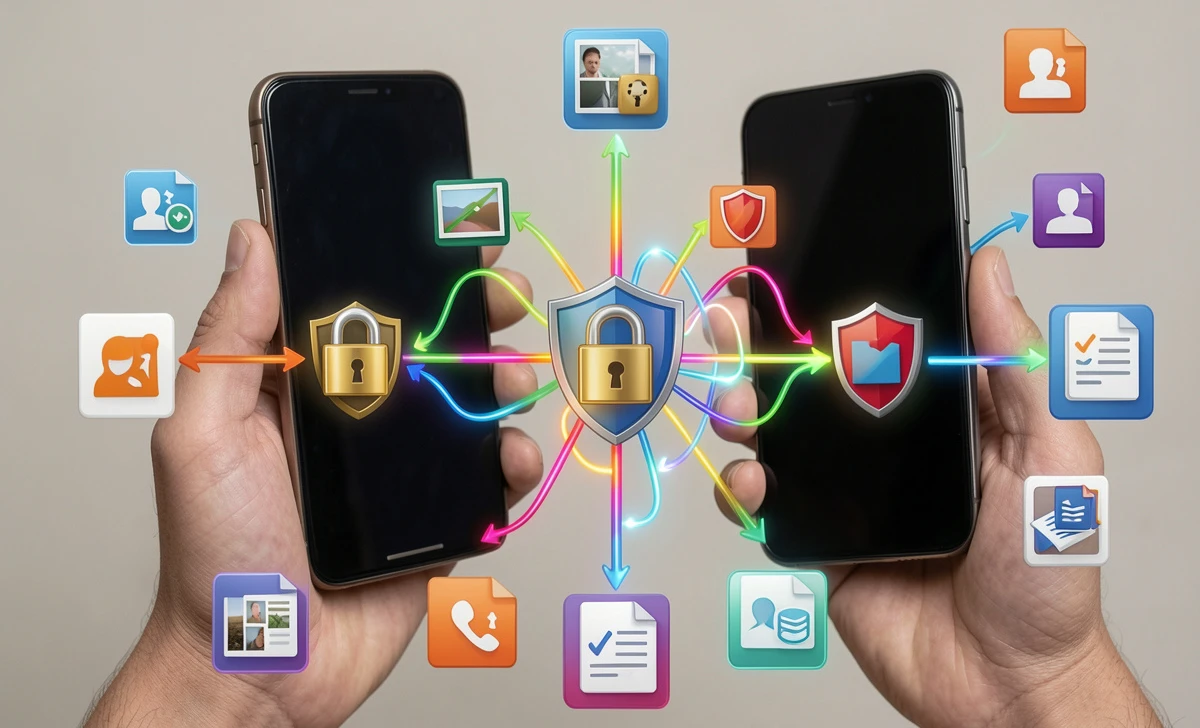
Switching phones should feel exciting, not stressful. But between blurry photo migrations, missing contacts, and random apps asking for suspicious permissions, it’s easy to feel like you’re gambling with your personal data. I’ve watched friends hand old devices to trade-in counters only to realize weeks later that a folder of irreplaceable videos vanished. The good news? You don’t need to trust sketchy third-party apps or leave your files bouncing through public Wi-Fi. If you want a secure phone data transfer from your old device to your new one, you’re completely capable of doing it yourself. I’ll walk you through the exact process so nothing slips through the cracks. Understanding end-to-end encryption basics helps you choose the safest transfer method from the start.
Before You Start: How to Backup Phone Before Switching Devices
Don’t skip this. Moving data straight from one device to another without a safety net is like packing for a cross-country trip and leaving your passport on the kitchen counter. Take twenty minutes to lock down a solid backup first.
Start with what actually matters: camera roll, saved contacts, messages, and app data. For photos, check your current cloud settings. If you’re on Android, open Google Photos and make sure “Back up & sync” actually says “Completed.” On iPhone, head to iCloud Photos and verify the same. But here’s the catch—cloud backups alone don’t give you full control. If you want a true safety net, plug your old phone into a computer. Copy the DCIM folder (that’s where your photos live) and export your contacts as a .vcf file. Store both on an external drive. Now you’ve got a physical copy that lives outside any algorithm.
While you’re at it, jot down any two-factor authentication app logins or recovery codes. Switching phones is the number one reason people get locked out of their banking or email accounts. Take a screenshot of your 2FA QR codes or write down the backup keys before wiping anything.
Method 1: Transfer Photos Without Losing Quality Phone to Phone
Most transfer tools compress your pictures by default. That family portrait from 2019 shouldn’t look like a low-res thumbnail on your new screen. To transfer photos without losing quality from phone to phone, you need to bypass the quick-share defaults.
If you’re moving from iPhone to iPhone, use AirDrop. It’s peer-to-peer, encrypted, and keeps your HEIC files and Live Photos completely intact. Turn it on for both devices, select the albums you want, and hit Share. It’ll take longer for thousands of shots, but the resolution stays exactly as you shot it.
Android to Android works best with a direct USB-C to USB-C cable. Plug the two phones together, grant file access, and drag the DCIM and Movies folders straight across. No middleman, no compression. Cross-platform? That’s where it gets tricky. Use Google Photos but tap into Settings > Upload quality and pick “Original.” It eats storage fast, but it stops the automatic downscaling. Always spot-check a few transferred images on the new phone before wiping the old one. Zoom in to 200%. If it looks sharp, you’re good.
Method 2: Transfer Data Between Phones Without Internet
Sometimes Wi-Fi drops. Sometimes you’re traveling, or you just don’t want your personal files bouncing through a router you don’t control. When that happens, you need to transfer data between phones without internet.
Grab a USB OTG adapter and a standard flash drive. Plug it into your old phone, copy your media and documents over, then plug the drive into your new phone. Android handles this natively through the Files app. iPhones require the Files app too, but stick to FAT32 or exFAT drives since Apple won’t read NTFS formats out of the box.
Another solid route is local Wi-Fi Direct. Apps like LocalSend or Send Anywhere create a closed network between your two devices. No cloud, no data caps, just a direct handshake. Open the app on both phones, scan the QR code, and push the files. I’ve moved 50GB of video files this way without a single dropped packet. Just keep both phones plugged into a power bank during the process. Local transfers drain battery fast, and a sudden shutdown can corrupt the transfer queue. Using a safe charging cable prevents power surges that could damage your devices during long transfers.
Quick security note: if you’re moving sensitive documents, wired USB transfers always beat wireless options. The physical connection leaves zero room for packet sniffing. Wi-Fi Direct comes in second, and Bluetooth should only be your fallback for small files.
Method 3: Transfer Contacts and Photos Without Cloud
Not everyone wants their address book synced to a tech giant’s servers. If you’re privacy-focused, you can easily transfer contacts and photos without cloud.
For contacts, export them as a .vcf (vCard) file. On Android, open Contacts > Settings > Export > Save to device storage. On iPhone, go to Settings > Contacts > Export vCard, then email it to yourself or save it to Files. Importing on the new device is just a tap on that .vcf file. Every number, email, and note comes through cleanly. Why hand over your contacts to a server when you can move them yourself?
Photos take a bit more manual work. Use Bluetooth if you’re only moving a few hundred files. Yes, it’s slow. But it’s encrypted by default and leaves zero trace on third-party servers. For larger batches, stick to the USB-C or flash drive method I mentioned earlier. The key is keeping the data path as short as possible. Fewer hops mean fewer places where location tags or metadata can leak.
What to Do When the Transfer Stalls
Transfers don’t always go smoothly. Maybe the progress bar hangs at 90%. Maybe your new phone shows “corrupted file.” Don’t panic, and definitely don’t factory reset the old device yet.
First, check your storage limits. A full new phone will silently reject large video files. Clear some space or delete duplicate screenshots before trying again. If an app stalls mid-transfer, force-stop it, restart both phones, and try a smaller batch. Sometimes moving 5GB at a time works better than shoving 100GB through at once.
What if your old phone screen is cracked and you can’t tap “Trust this Computer”? You’ll need to bypass the touch prompt. If you previously paired it with your computer, it might auto-trust. Otherwise, plug a USB OTG mouse into the phone to navigate the lock screen, or pull data directly from the backup you made earlier.
Final Security Checklist: Confirming Your Data Is Safe
Once everything lands on the new phone, don’t just assume it worked. Run a quick verification sweep to catch missing files or corrupted folders.
• Compare total file counts between old and new devices. If you moved 4,200 photos and your new gallery says 4,185, something got dropped. • Open 3 random 4K videos to confirm playback isn’t stuttering or showing black screens. • Check 5–10 photo properties to ensure GPS tags, dates, and album names survived the jump.
After you’ve verified everything, factory reset the old phone. Go into settings, wipe all data, and actually wait for the “Erase complete” screen. Skipping that step leaves your personal info vulnerable to the next buyer. Learn how to securely wipe old smartphones properly before selling or trading them in.
FAQs
Will using a USB cable really transfer photos faster than Wi-Fi?
It usually does for large batches. A wired connection avoids network congestion and doesn’t rely on signal strength. Just make sure both phones use USB 3.0 or higher cables; you’ll bottleneck the speed anyway.
Can I safely use free file-transfer apps from the app store?
Be careful. Many “free” transfer apps bundle ad trackers or request unnecessary permissions like microphone access. Stick to open-source tools like LocalSend, or use built-in OS features like Quick Share and AirDrop.
Do I need to keep both phones charged during the transfer?
Absolutely. A sudden shutdown mid-transfer can corrupt your new phone’s storage structure. Plug them both into wall chargers, or at least use high-capacity power banks.
What happens if my old phone screen is cracked and I can’t tap “Trust this Computer”?
You’ll need to bypass the touch prompt. If you previously paired it with your computer, it might auto-trust. Otherwise, plug a USB OTG mouse into the phone to navigate the lock screen, or pull data directly from a cloud backup you made earlier.
Wrap-Up
Switching phones doesn’t have to be a leap of faith. With a proper backup, a wired or direct local connection, and a quick verification pass, you’ll land on your new device with every memory intact and zero data exposure. Take your time with the verification step. It’s the only way to be sure nothing got left behind or compressed into oblivion.
Once you’ve got your media and contacts settled, you’ll probably want to lock down your new device’s privacy settings from day one. covers exactly that, step by step. Setting up strong passwords you can actually remember is the first line of defense for your fresh device.